
Help Center · Getting started · Updated
Create your Kikko account

Kikko runs in your browser at app.kikko.ai. There's nothing to install, and your 14 days of full access start without a card. Creating an account takes about a minute.
Sign up
1. Open the sign-up page
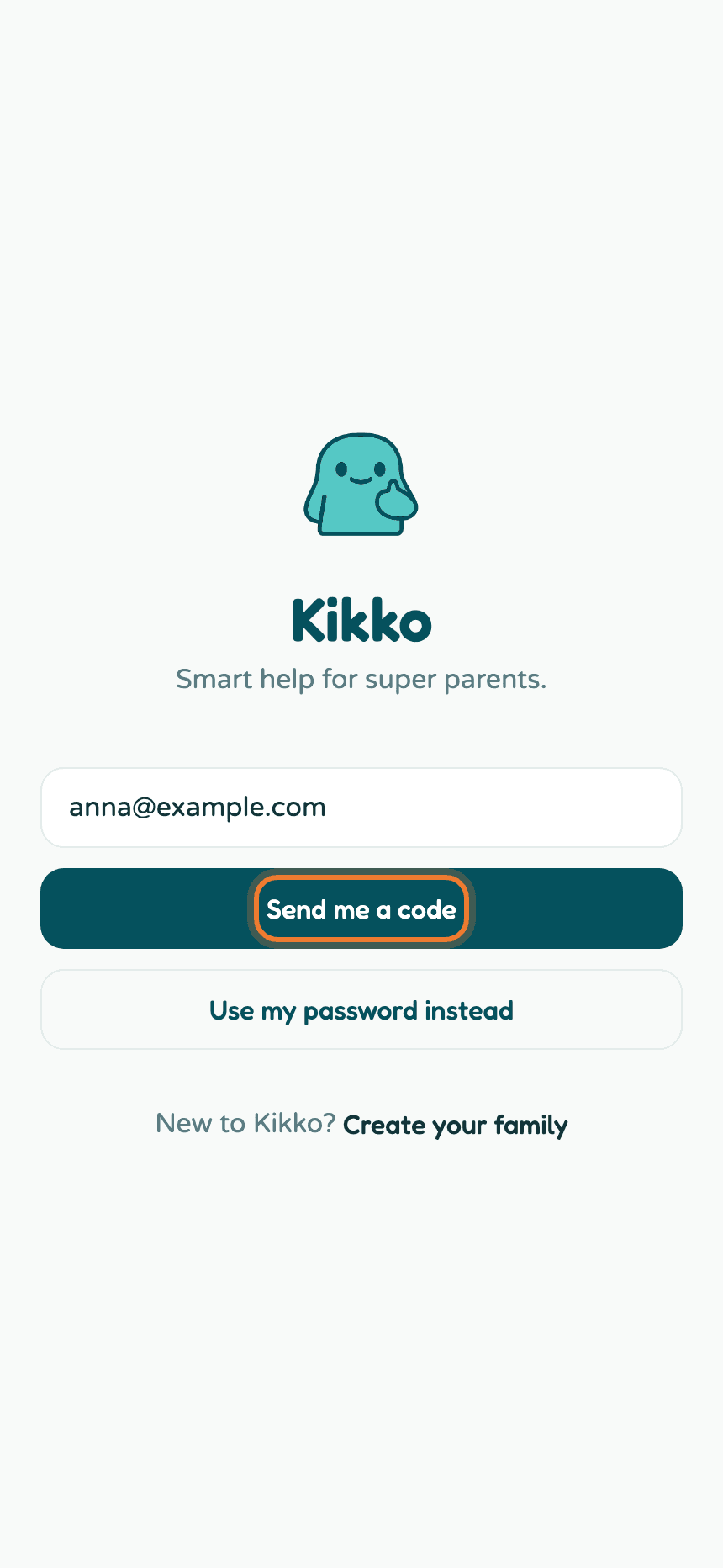
Go to app.kikko.ai and tap Create account at the bottom of the sign-in screen. You can also jump straight to app.kikko.ai/sign-up.
2. Fill in your details
Enter your name, your email address, and a password of at least 8 characters.
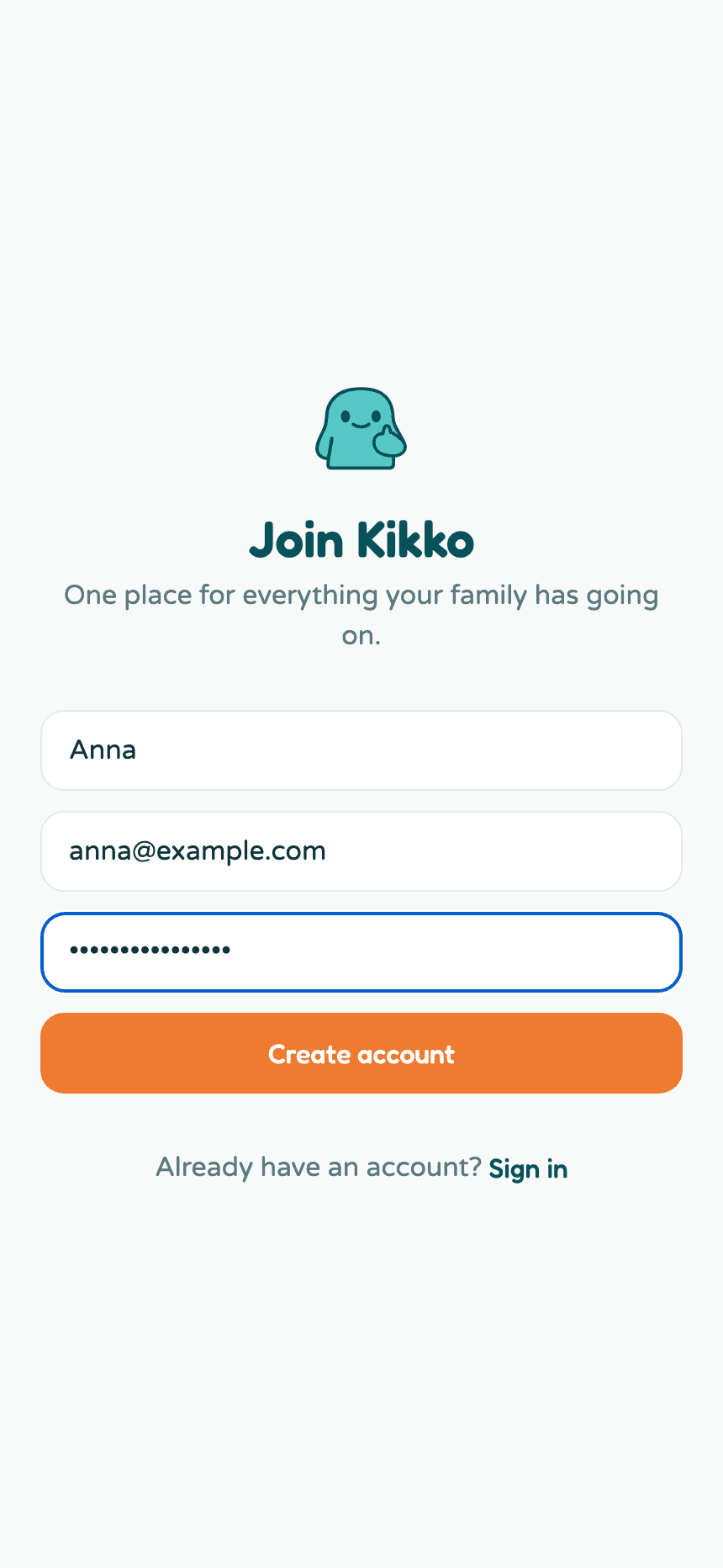
Tap Create account when you're done.
3. Confirm your email with the 6-digit code
Kikko emails you a 6-digit confirmation code right away. The email comes from kikko@inbox.kikko.ai with the subject "Your Kikko confirmation code". Check spam if you don't see it within a minute.
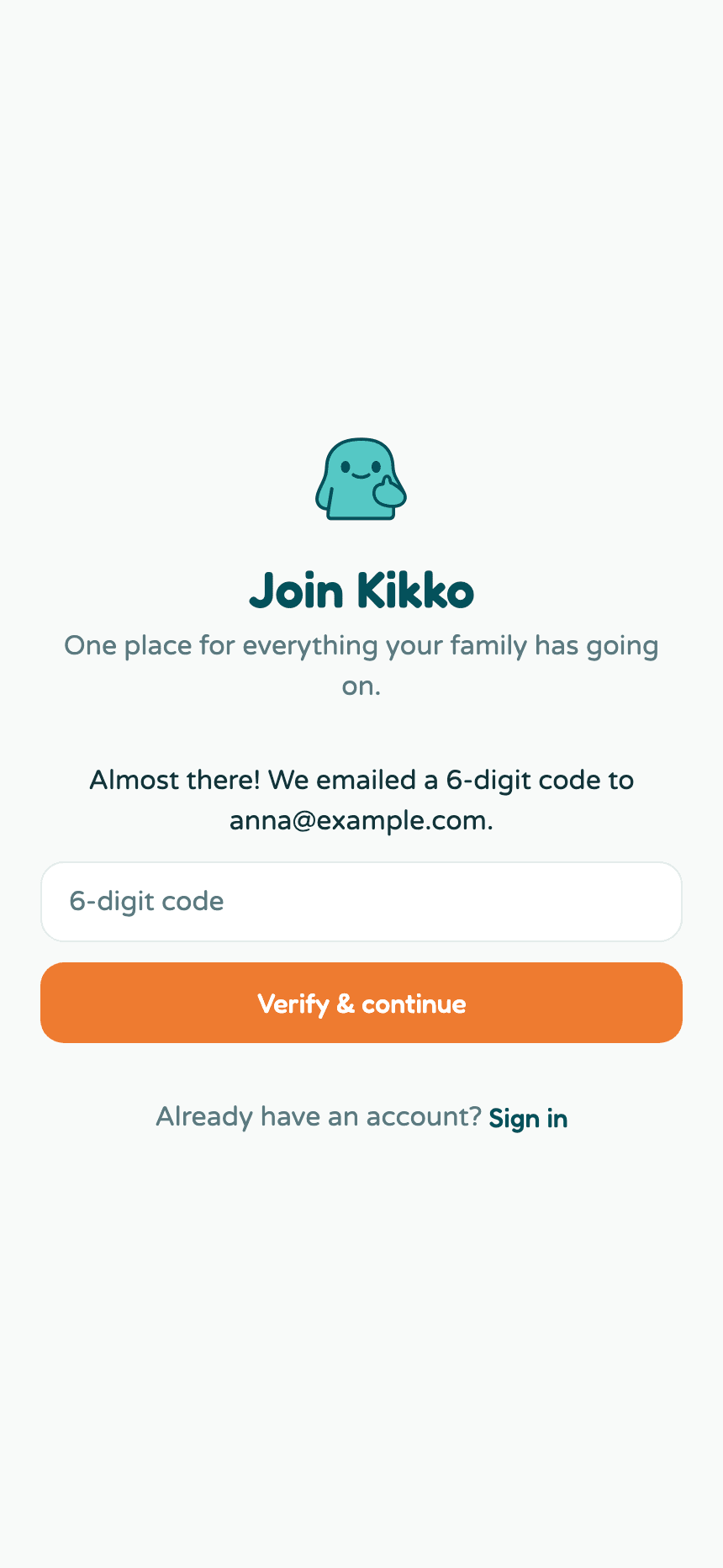
Type or paste the code. Pasting works even if the code arrives with spaces in it.
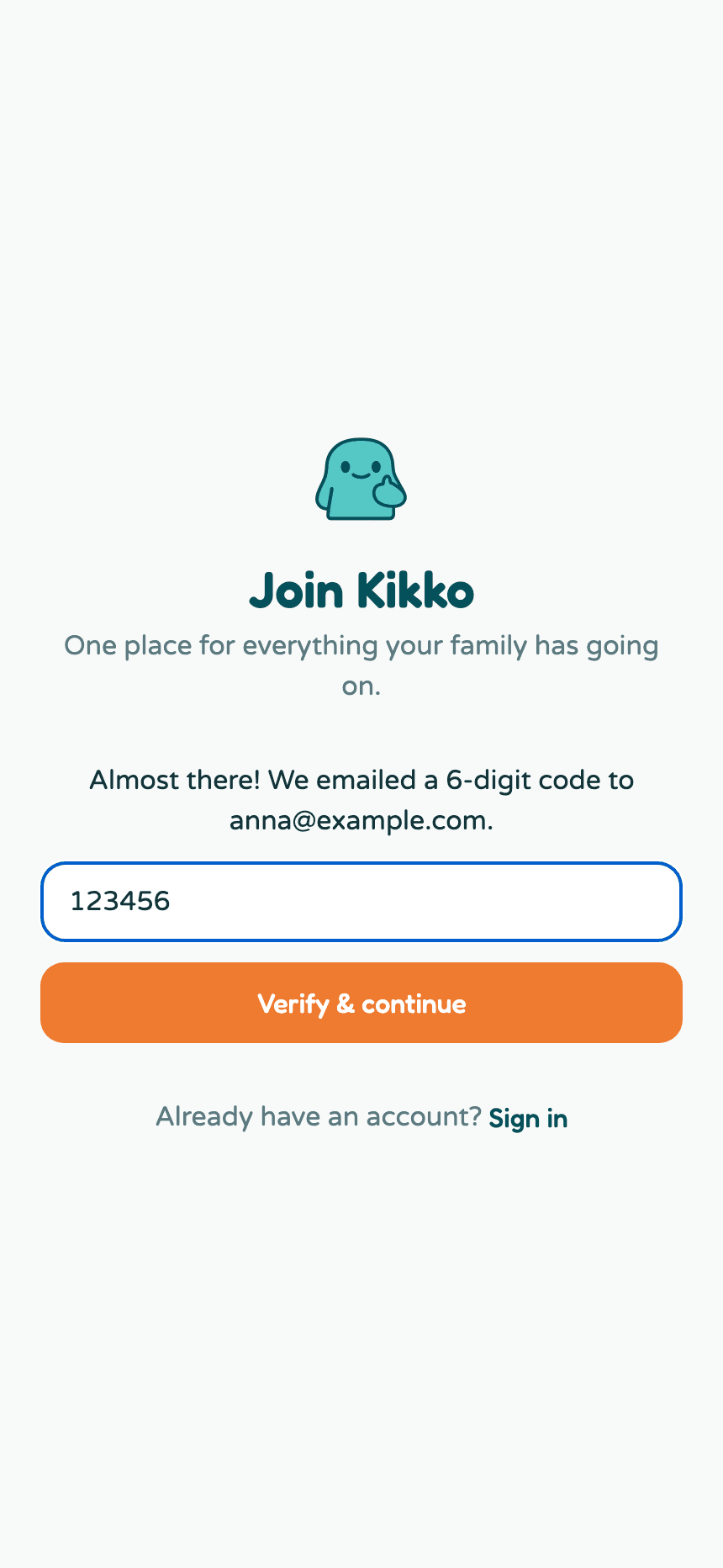
Tap Verify & continue. That's it - your account exists. Kikko now walks you through setting up your family.
Signing back in
Next time you visit app.kikko.ai, you have two ways in:
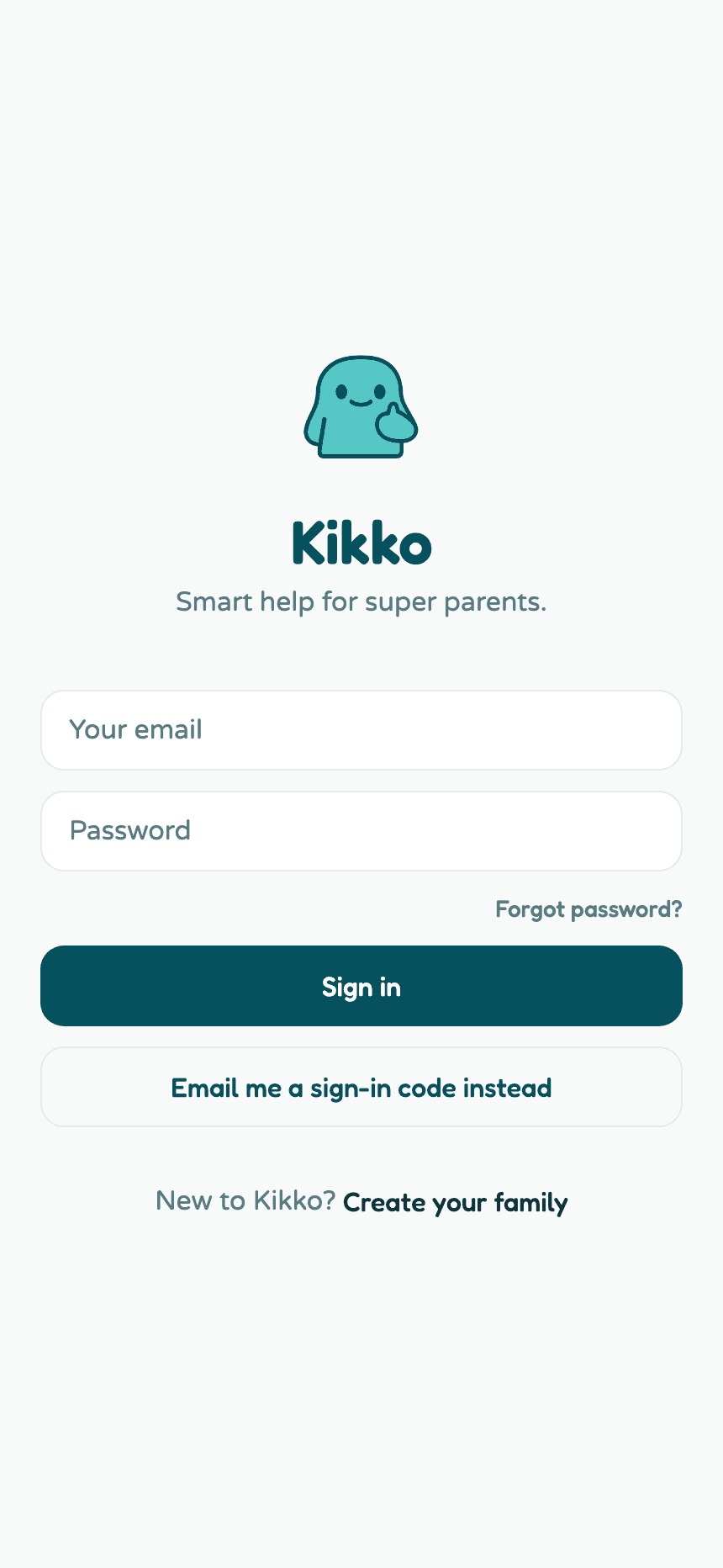
- With your password. Enter your email and password, tap Sign in.
- With a code. Tap Email me a sign-in code instead, then Send me a code. Kikko emails you a fresh 6-digit code - useful when you're on a device where you don't want to type your password, or you've forgotten it.
Good to know
- Codes expire after one hour. If yours expired, just request a new one.
- Your email address is your account. There's no username to remember.
- One account belongs to one family. If your partner already set up Kikko, don't create your own family - ask them for an invite code and join their family instead.
Related
Did this answer your question? If not, email us and we'll help.