
Help Center · Getting started · Updated
Set up your family and add your kids

Right after you create your account, Kikko asks two things: what's your family called, and who are your kids. Everything else - photos, colors, your partner - can wait.
Name your family
1. Pick a family name
This is the name you'll see on your Home screen every day. Most people use their surname, like "The Bianchi Family".
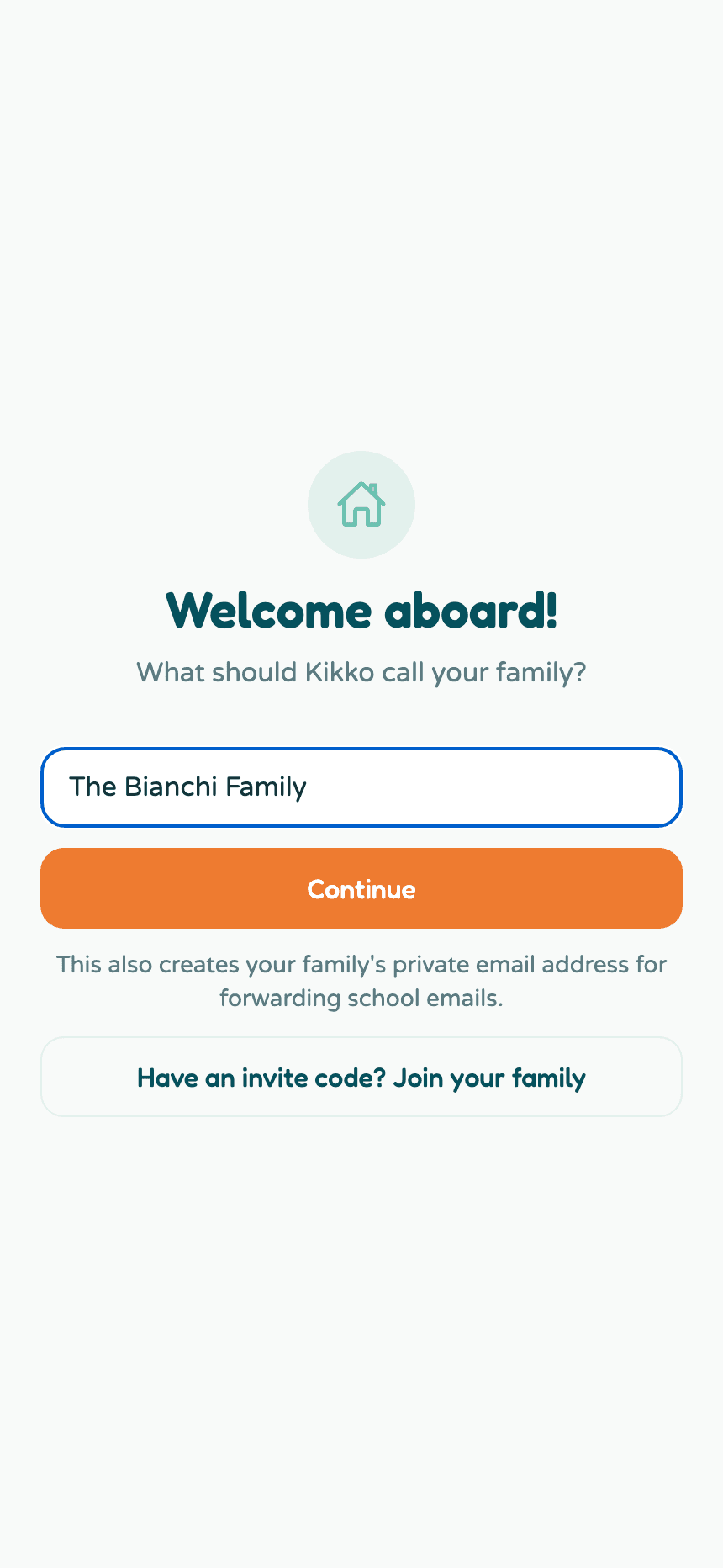
Tap Continue.
Already have a partner on Kikko? Don't create a second family. Tap Have an invite code? Join your family at the bottom instead - here's how joining works.
Add your kids
2. Add each kid's name
Kikko organizes everything around your kids: each one gets their own color, their own events, and their own reminders. Add a name, and optionally their school.
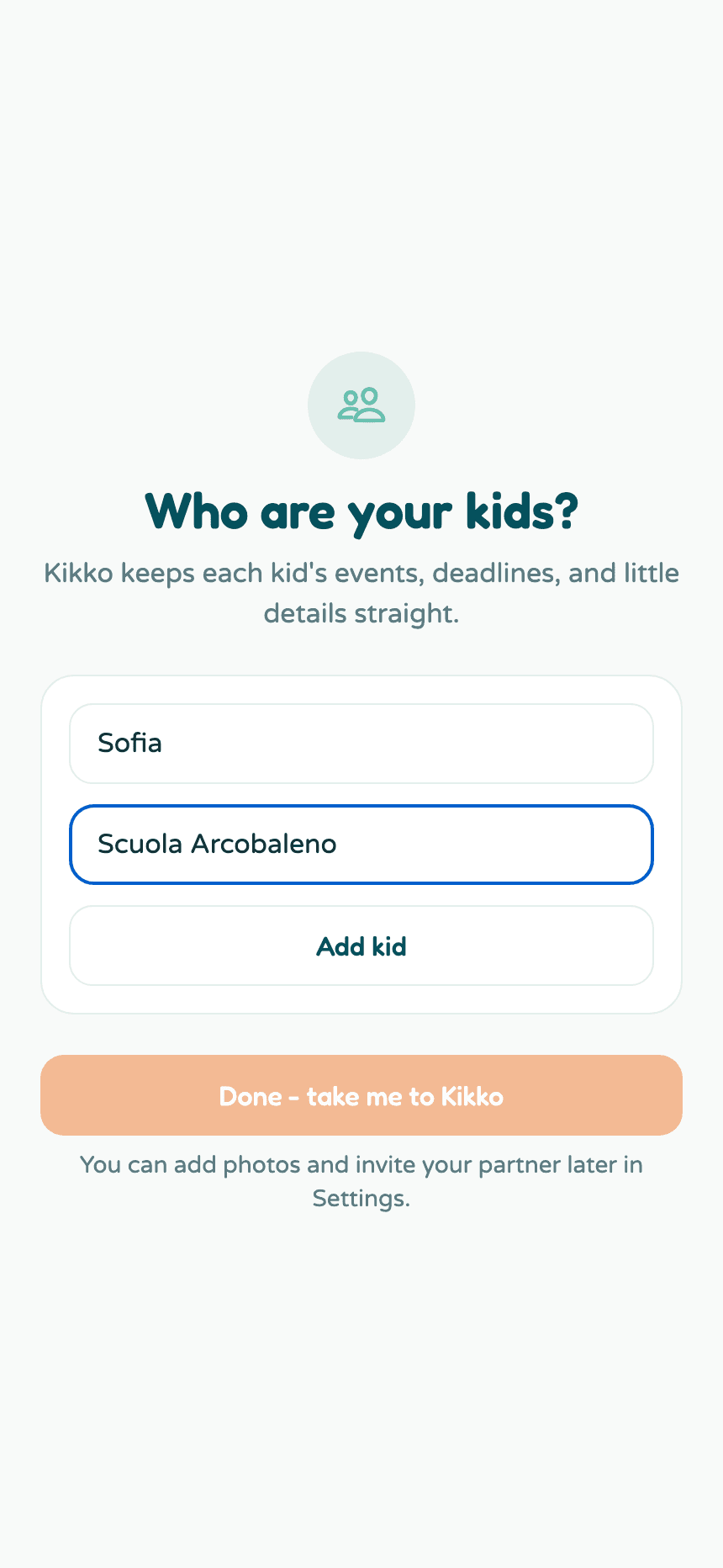
3. Tap Add kid, then repeat
Each kid appears in a list as you add them. Add as many as you need.
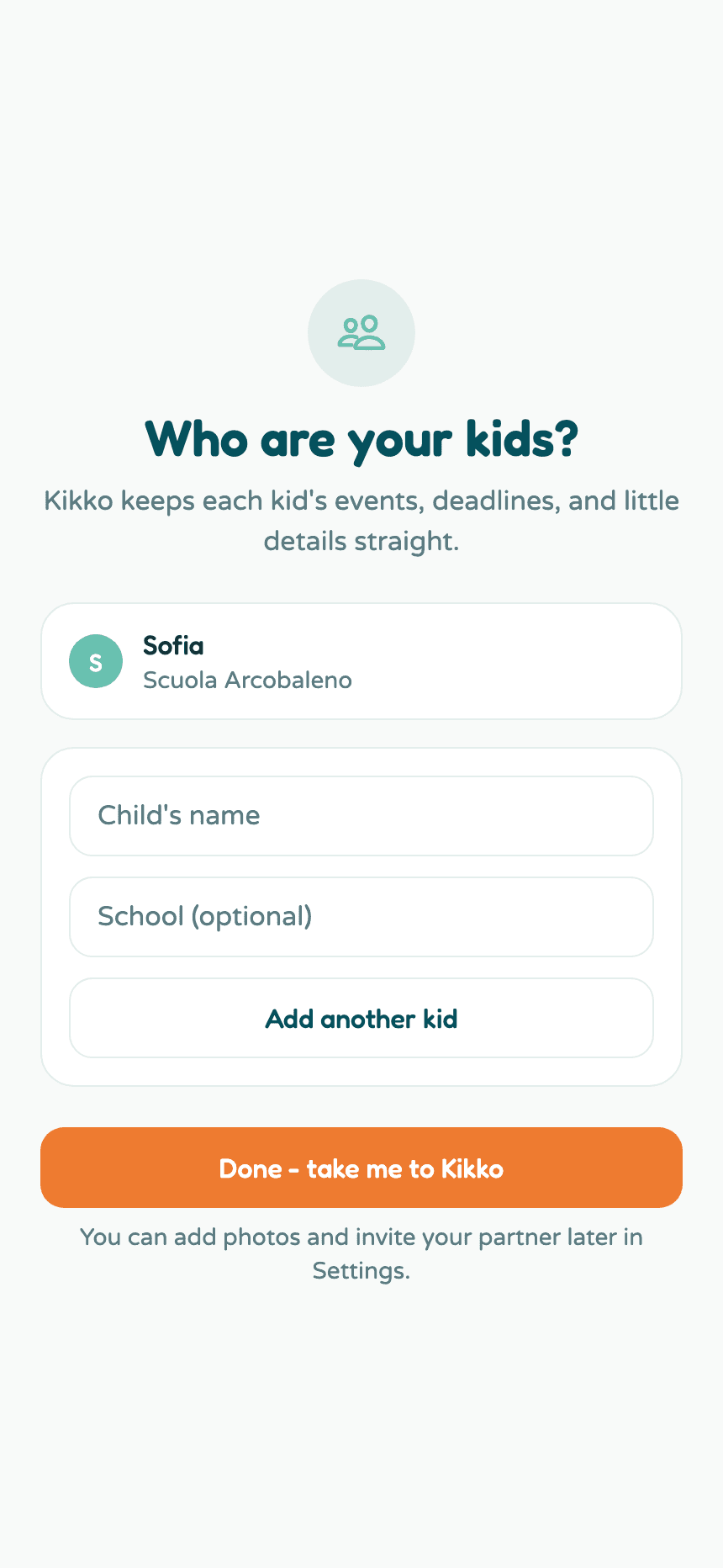
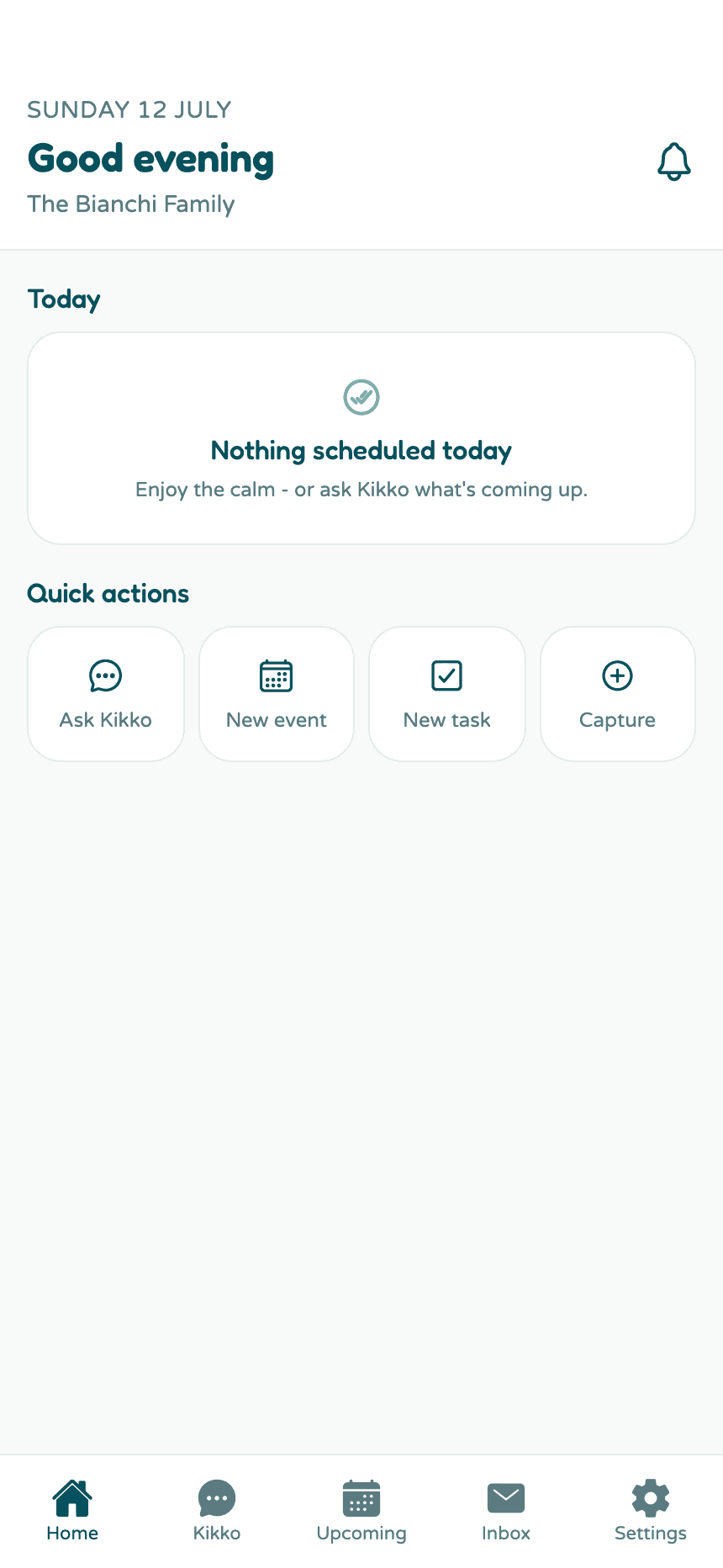
4. Done - take me to Kikko
Tap the big button and you land on your Home dashboard.
What to do next
Your family exists, but the calendar is empty. Three good first moves:
- Try the chat. Tell Kikko one real thing, like "Sofia has swimming every Tuesday at 5pm". Here's how.
- Save your forwarding address. Every family gets a private email address - forward a school email to it and watch Kikko turn it into events. Here's how.
- Invite your partner so you're both looking at the same calendar. Here's how.
Good to know
- You can rename the family, change the language of Kikko's answers, and edit kids anytime in Settings.
- Each kid's profile holds their photo, color, school, and reminder preferences. Tap a kid in Settings → Your kids to edit.
- Kikko detects your timezone from your device. It's shown in Settings under Family.
Related
Did this answer your question? If not, email us and we'll help.