
Help Center · Getting started · Updated
Join a family with an invite code

If your partner already uses Kikko, they can invite you with a code. Joining takes a minute, and you'll see the exact same calendar, chat, and inbox they do.
Join with the invite link
1. Open the link they sent you
The invite arrives as a link like app.kikko.ai/invite?code=.... Open it on any device.
2. Create an account (or sign in)
If you're new to Kikko, the link routes you through the normal sign-up first: name, email, password, and a 6-digit email code. Already have an account? Just sign in. Either way, Kikko remembers the invite and brings you back.
3. Confirm the code
You land on the join screen with the code already filled in.
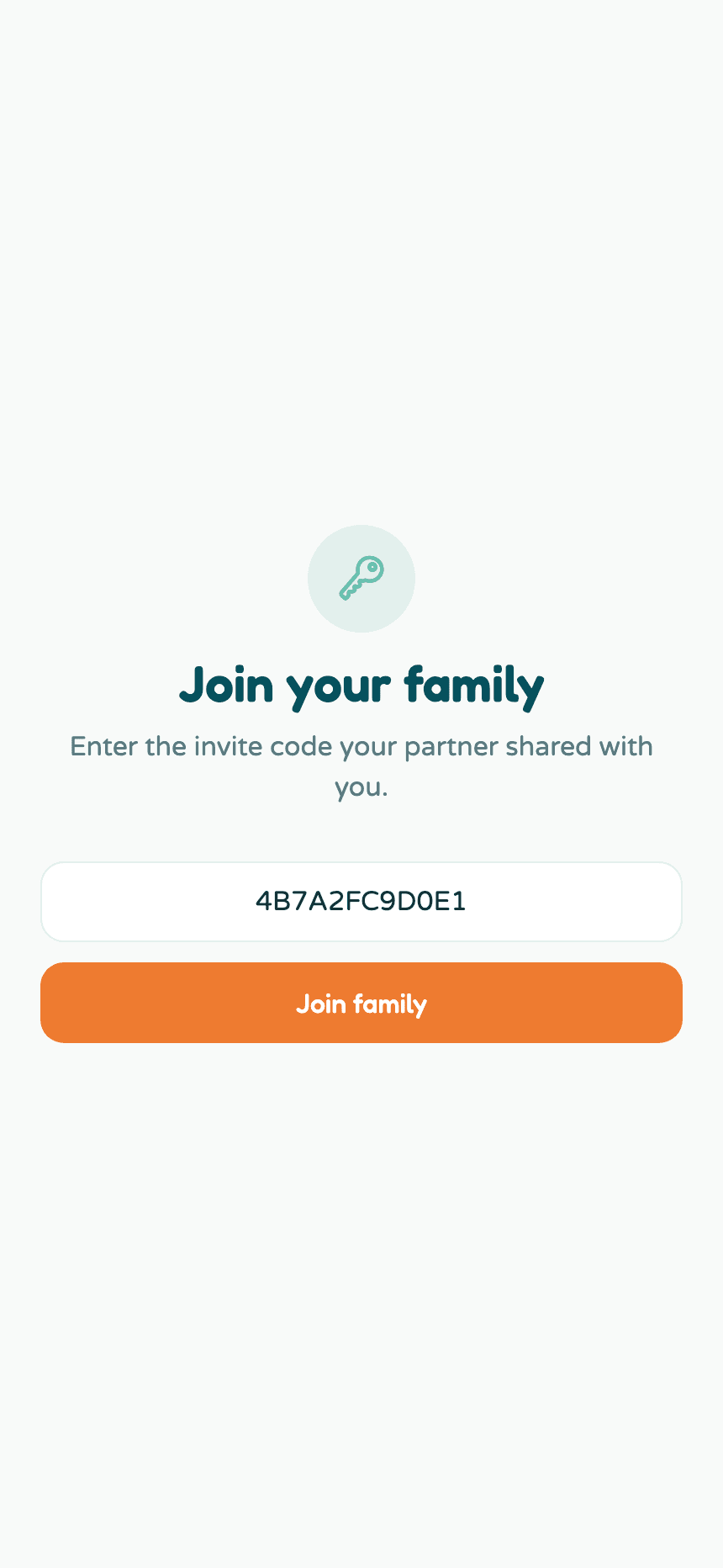
Tap Join family. Done - your Home now shows the shared family, kids and all.
Got a code but no link?
No problem. Sign in, and if you don't have a family yet you'll see Have an invite code? Join your family on the create-family screen. Tap it, type the code, tap Join family. Codes aren't case-sensitive.
If the code doesn't work
- It was already used. Codes work exactly once. Ask for a new one.
- It expired. Codes last a week. Ask your partner to tap New code in Settings and share again.
- You already have a family. An account can only belong to one family right now. If you accidentally created your own family first, contact support and we'll sort it out.
Related
Did this answer your question? If not, email us and we'll help.