
Help Center · Adding things to Kikko · Updated
Tell Kikko in chat

The fastest way to get something on the calendar is to just tell Kikko, the way you'd text your partner. No date pickers, no forms.
Add an event by typing
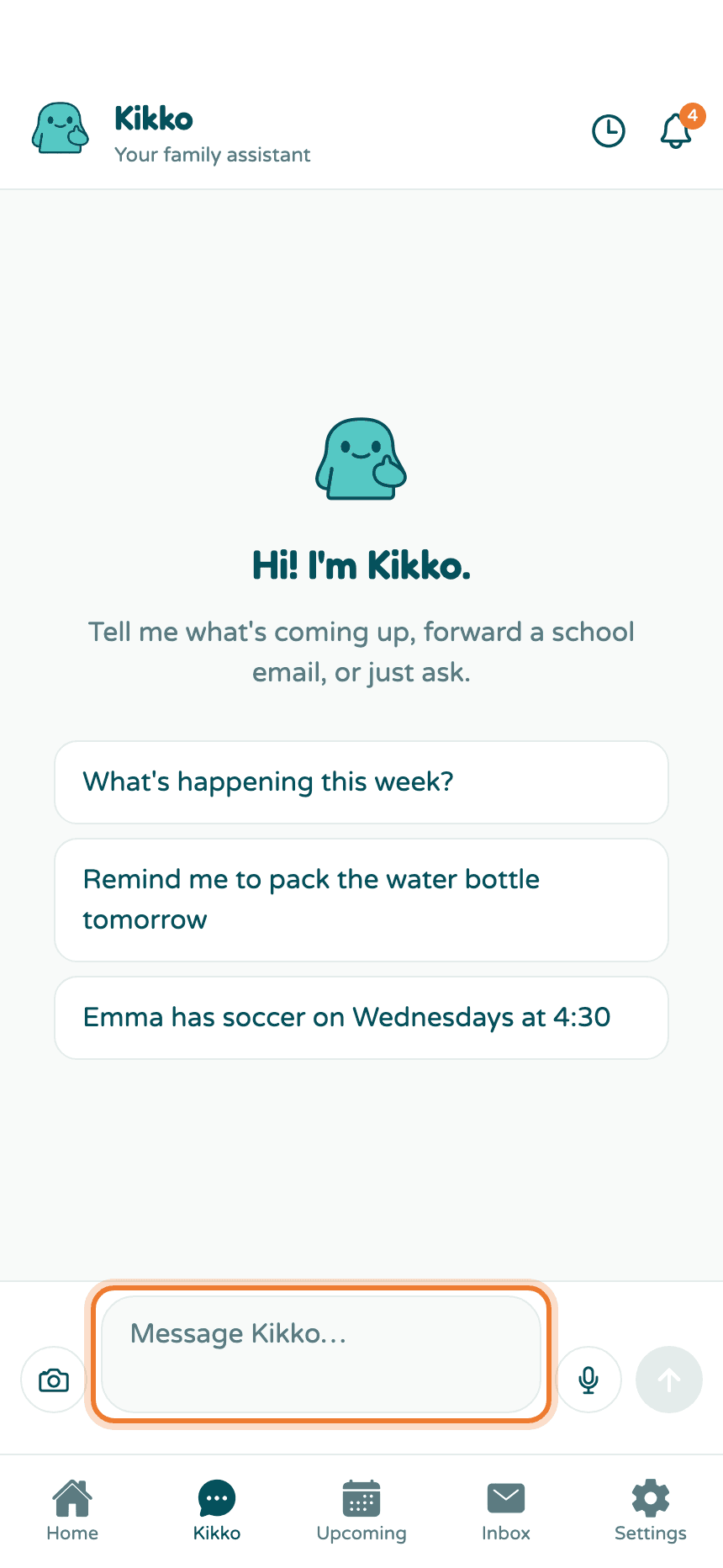
1. Open the Kikko tab
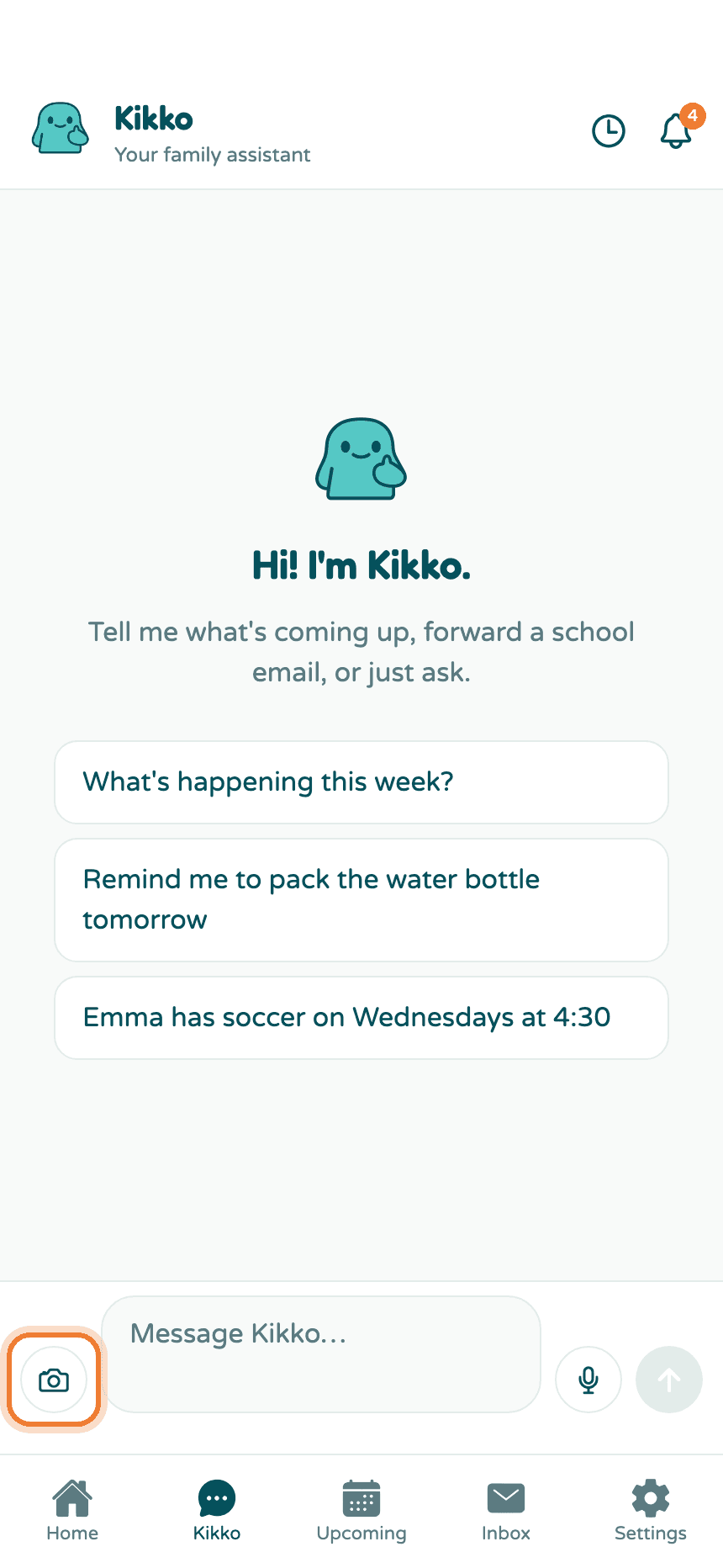
Tap Kikko in the bottom bar. The message box is at the bottom.
2. Say what's happening
Include who, what, and when, in whatever words come naturally. Kikko understands dates like "next Friday", "July 20", or "every Wednesday".
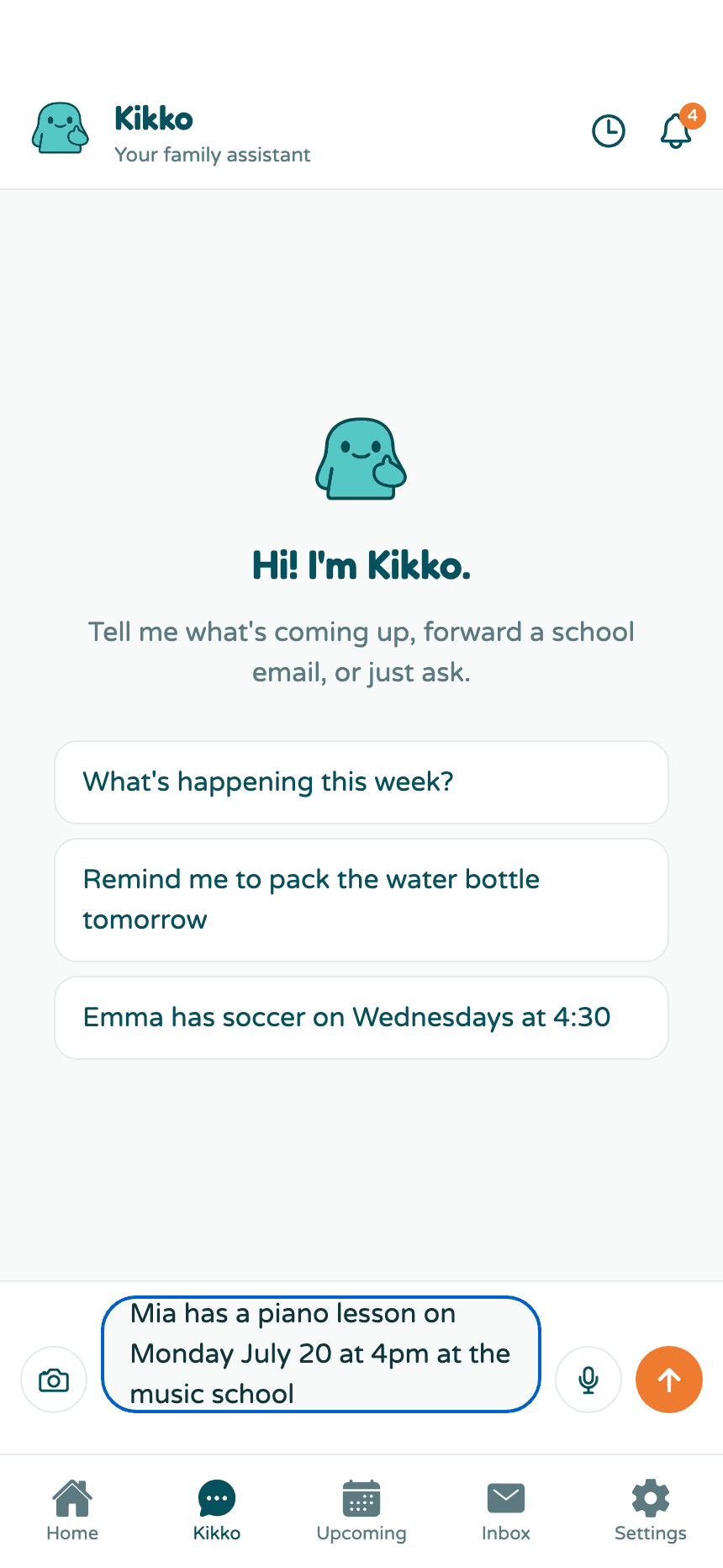
3. Send it
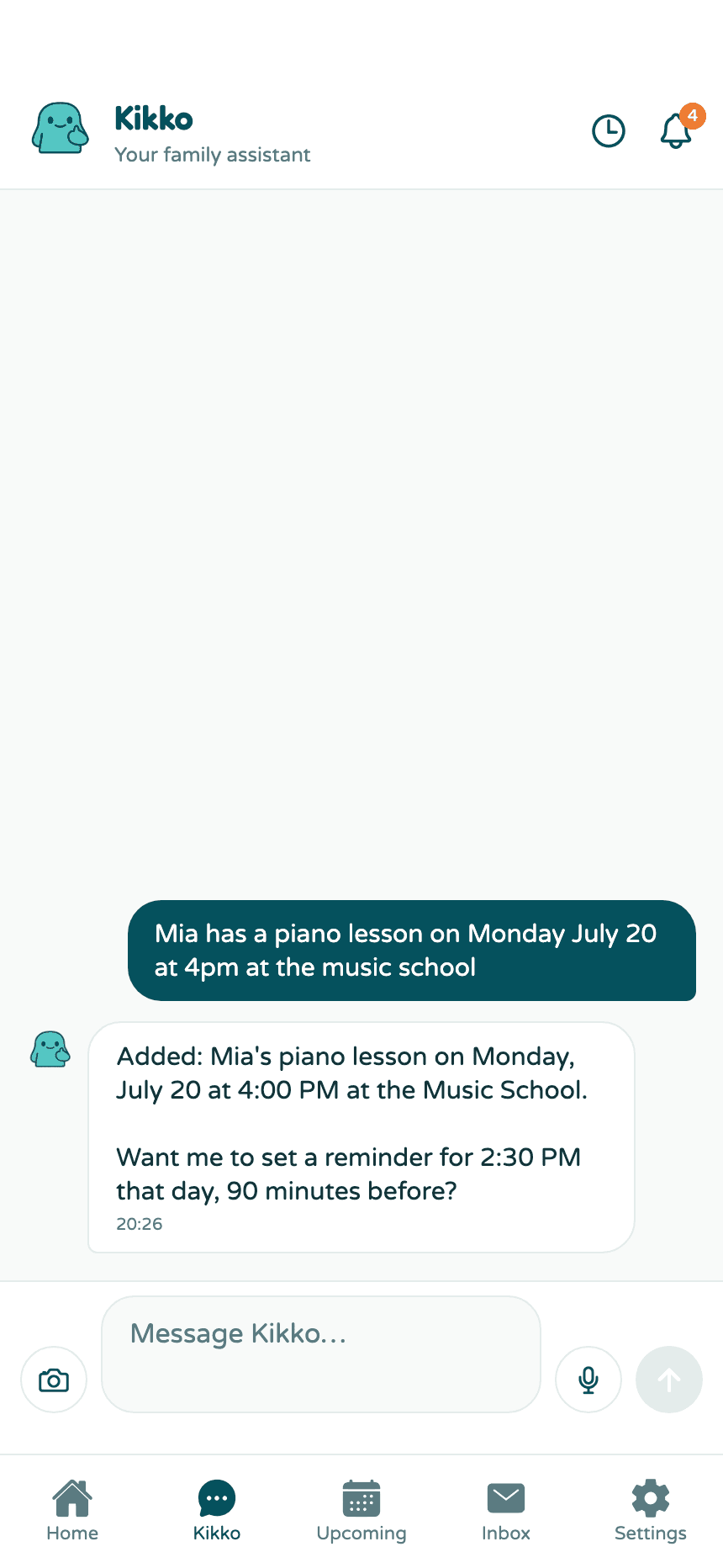
Kikko confirms what it added and often offers a next step, like setting a reminder. If a detail is wrong, just say so ("actually it's at 4:30") and Kikko fixes it.
Speak instead of typing
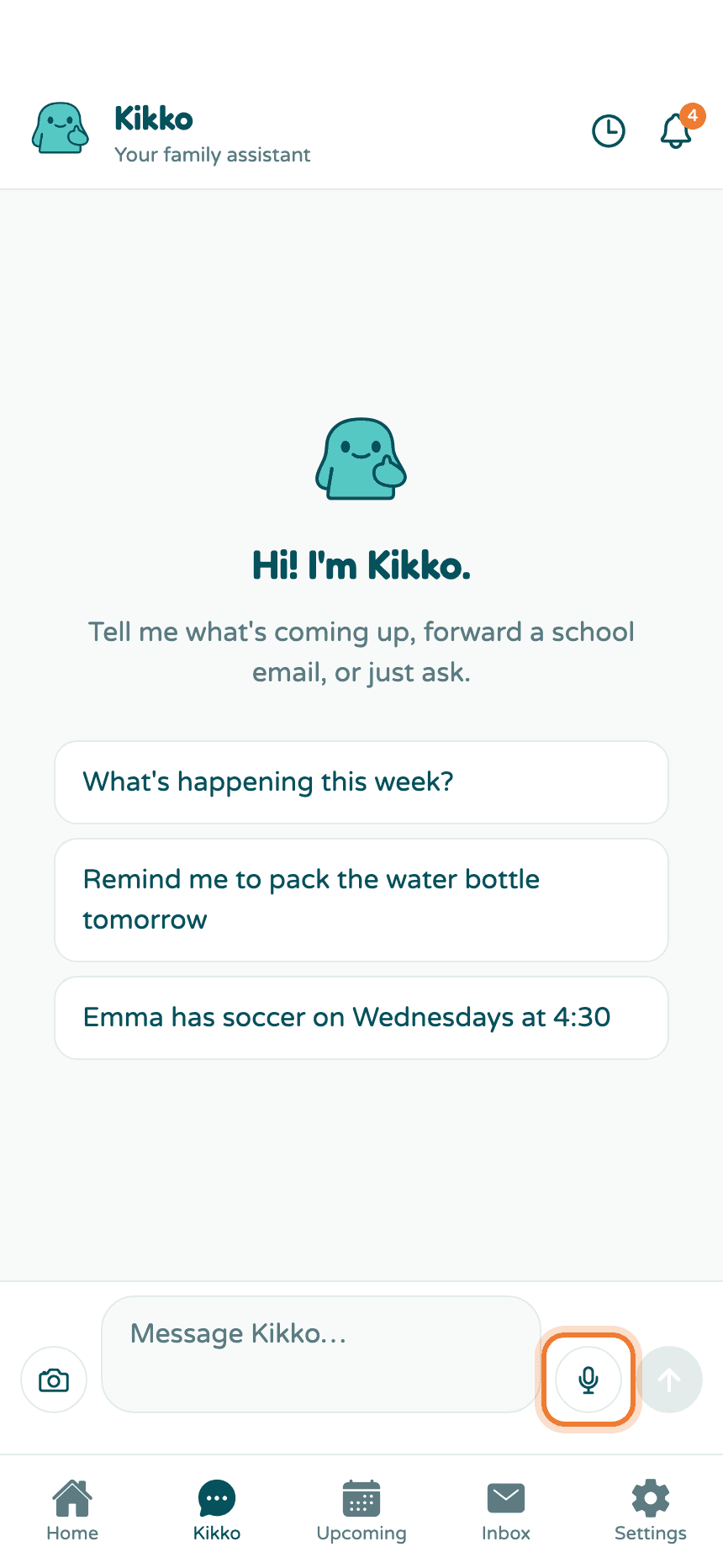
Tap the microphone and just say it. Kikko types what you say into the message box, so you can check it before sending. Your browser will ask for microphone permission the first time.
Send a photo of a flyer
Tap the camera button to snap a photo or pick one from your library - the school flyer on the fridge, a screenshot of a WhatsApp message, a PDF of the camp schedule. Kikko reads it and turns it into events, just like pasted text.
What else you can ask
Kikko answers questions from your family's real calendar, in the same chat:
- "What's on this weekend?"
- "What does Mia need for camp tomorrow?"
- "When is Tom's dentist appointment?"
- "Remind me tonight to pack the swim bag."
Kikko also remembers useful little facts that come up ("Mia is vegetarian") and keeps them on each kid's profile, where you can see and delete them.
Good to know
- The clock icon at the top opens your past conversations; New chat starts a clean one.
- Kikko answers in English by default. You can switch its answers to Italian, French, or German in Settings → Family.
- Whatever language the flyer or message is in, Kikko can read it.
Related
Did this answer your question? If not, email us and we'll help.