
Help Center · Calendar and tasks · Updated
Event details

Tap any event card and you land on its detail screen. Everything is editable in place - what, when, where, who, and what to bring.
The detail screen
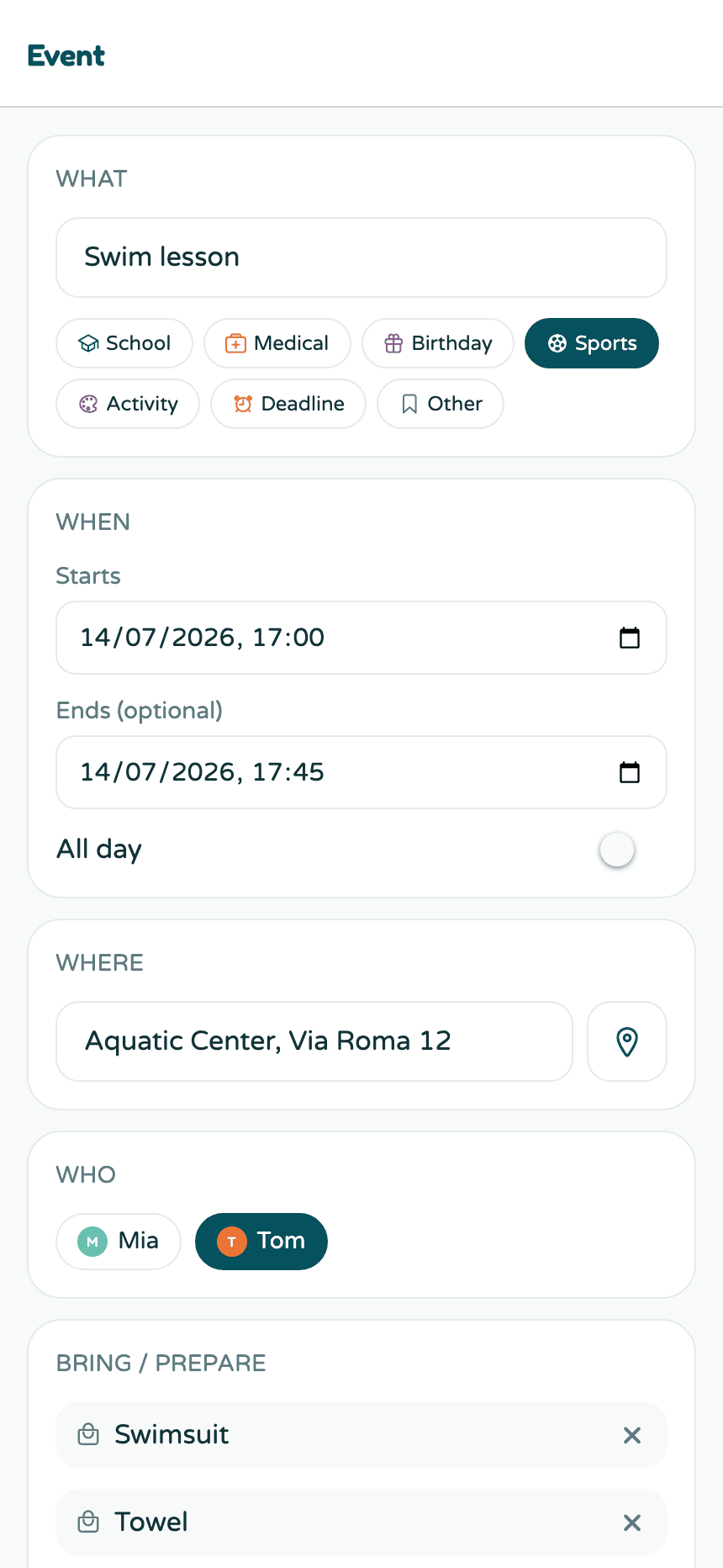
Change anything and tap Save changes at the bottom. The sections top to bottom:
- What - title and category chip (School, Medical, Birthday, Sports, Activity, Deadline, Other).
- When - start, optional end, or All day.
- Where - the location, with a maps shortcut (below).
- Who - which kid it belongs to; nobody selected means the whole family.
- Bring / prepare - the packing list; items show on the event card and in reminders.
- Notes - anything else.
Open the location in Maps
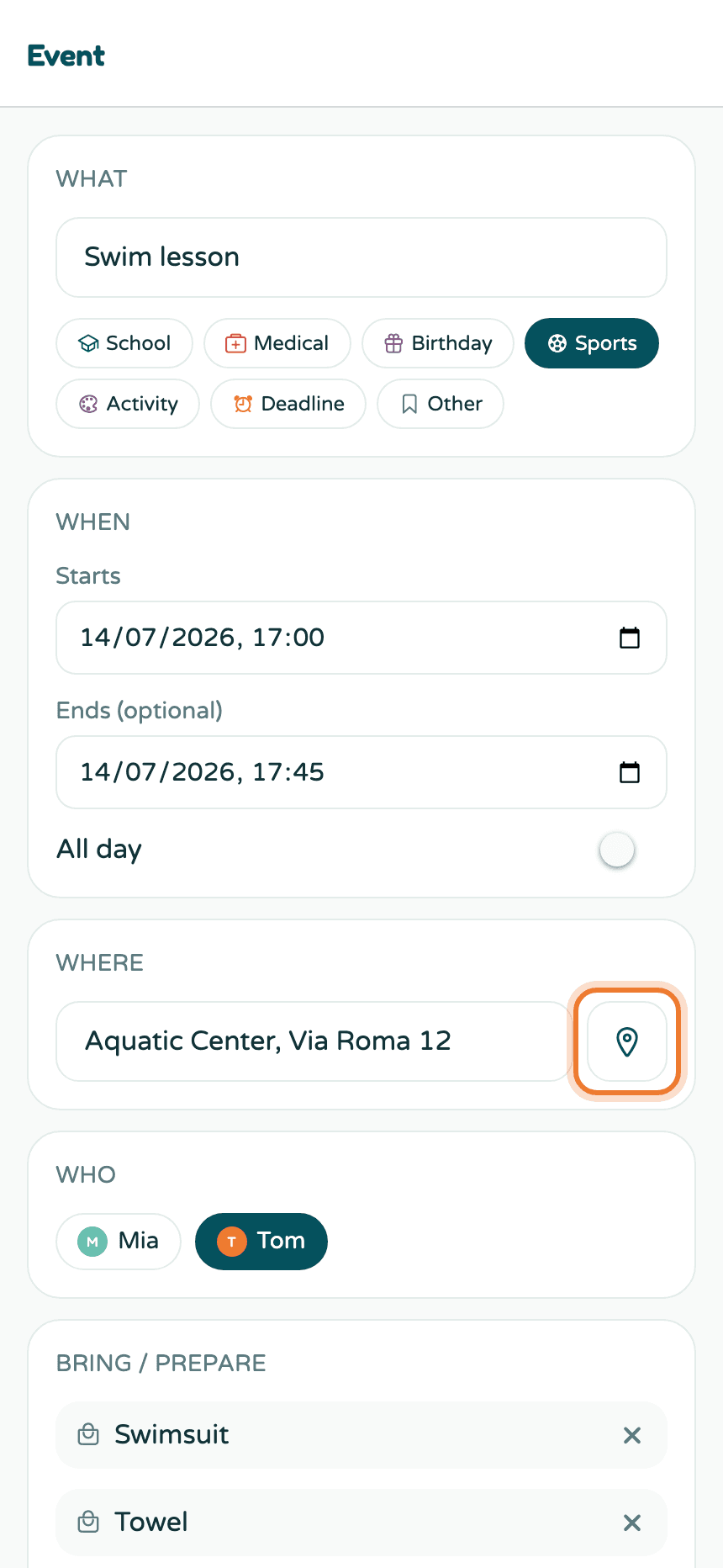
Events with a location get a pin button. Tap it and the address opens in Apple Maps on an iPhone or Google Maps everywhere else - directions are two taps away from any event.
Per-event reminders
Below the main fields, the Reminders section shows what's scheduled for this event and offers quick extras like "evening before" or "90 minutes before" - useful for the events that need more lead time than your default.
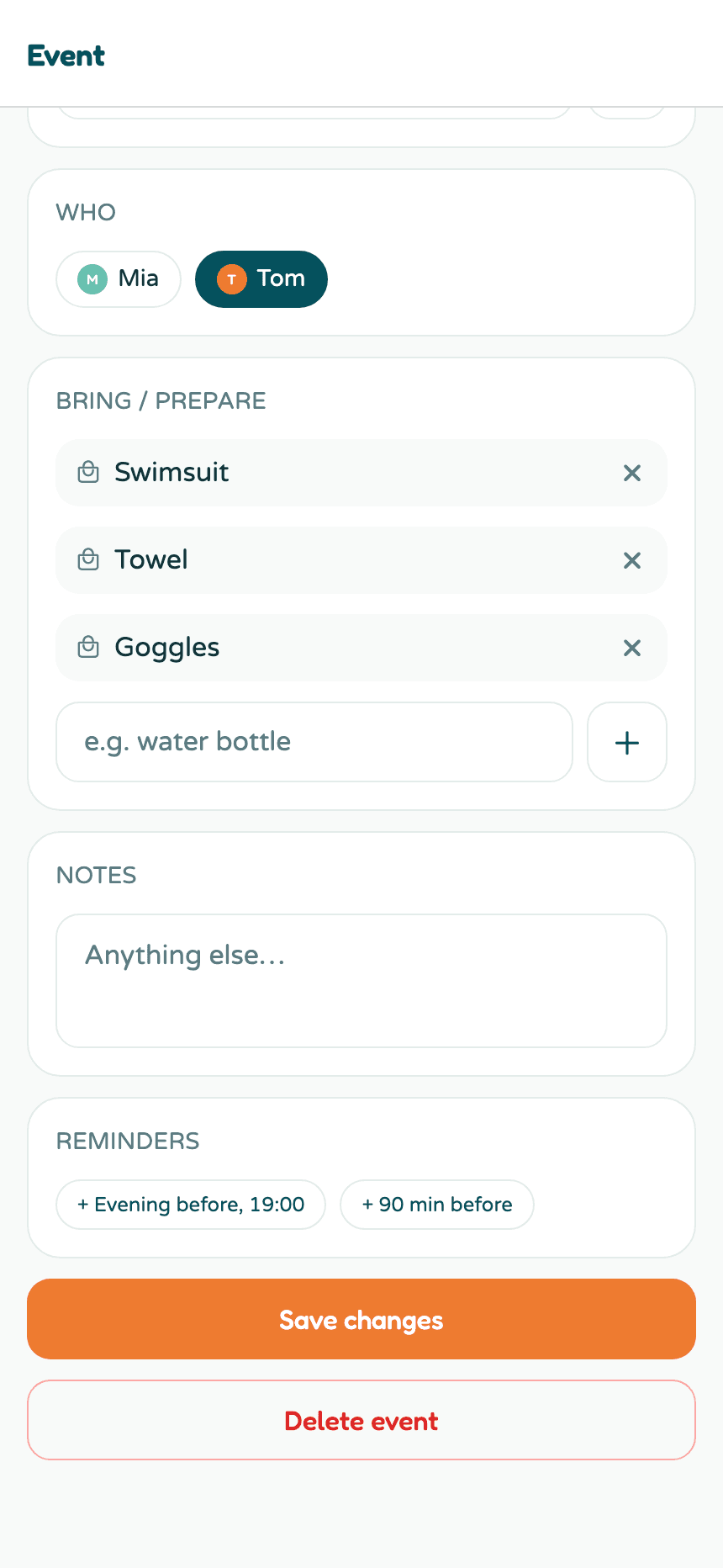
Reminders can also be assigned to a specific parent, so the right person gets the ping. Your family-wide defaults live in reminder settings.
Overlap warnings
When two events collide, both get flagged: an overlaps badge on their agenda cards, a warning on the detail screen, and a heads-up card on Home.
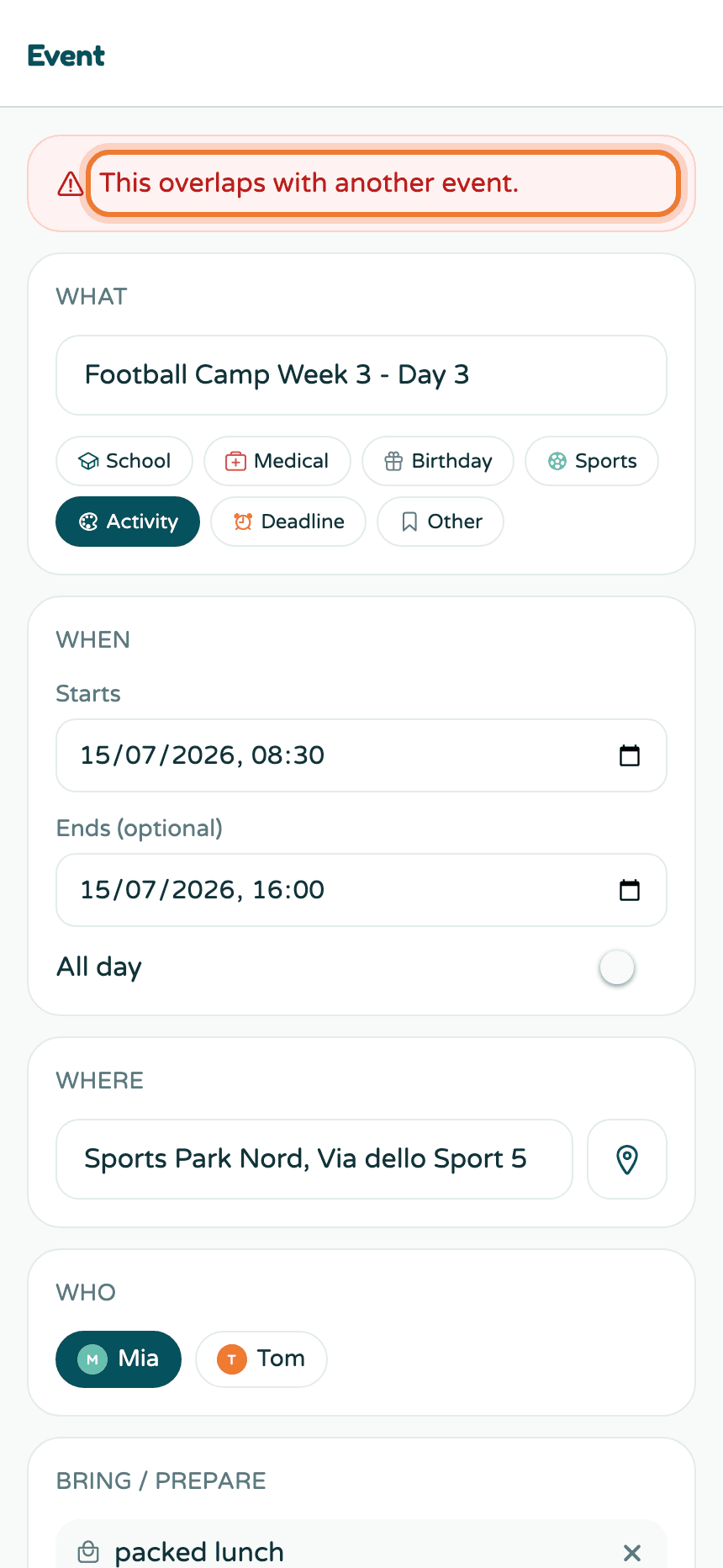
Kikko never resolves conflicts for you. It just makes sure you see them before Saturday morning does.
Good to know
- Events extracted from an email or capture link back to the original source at the bottom - "From your inbox".
- Deleting an event asks you to tap twice - no accidental deletes.
- If Kikko created the event and wasn't sure about it, a yellow review banner sits on top.
Related
Did this answer your question? If not, email us and we'll help.