
Help Center · Adding things to Kikko · Updated
Add an event or task manually

Chat and capture are fast, but sometimes you know exactly what you want to enter. The manual forms give you full control over every field.
Where to start
Tap the orange + on the Upcoming tab (bottom right), the + in the Inbox, or the quick actions on Home.
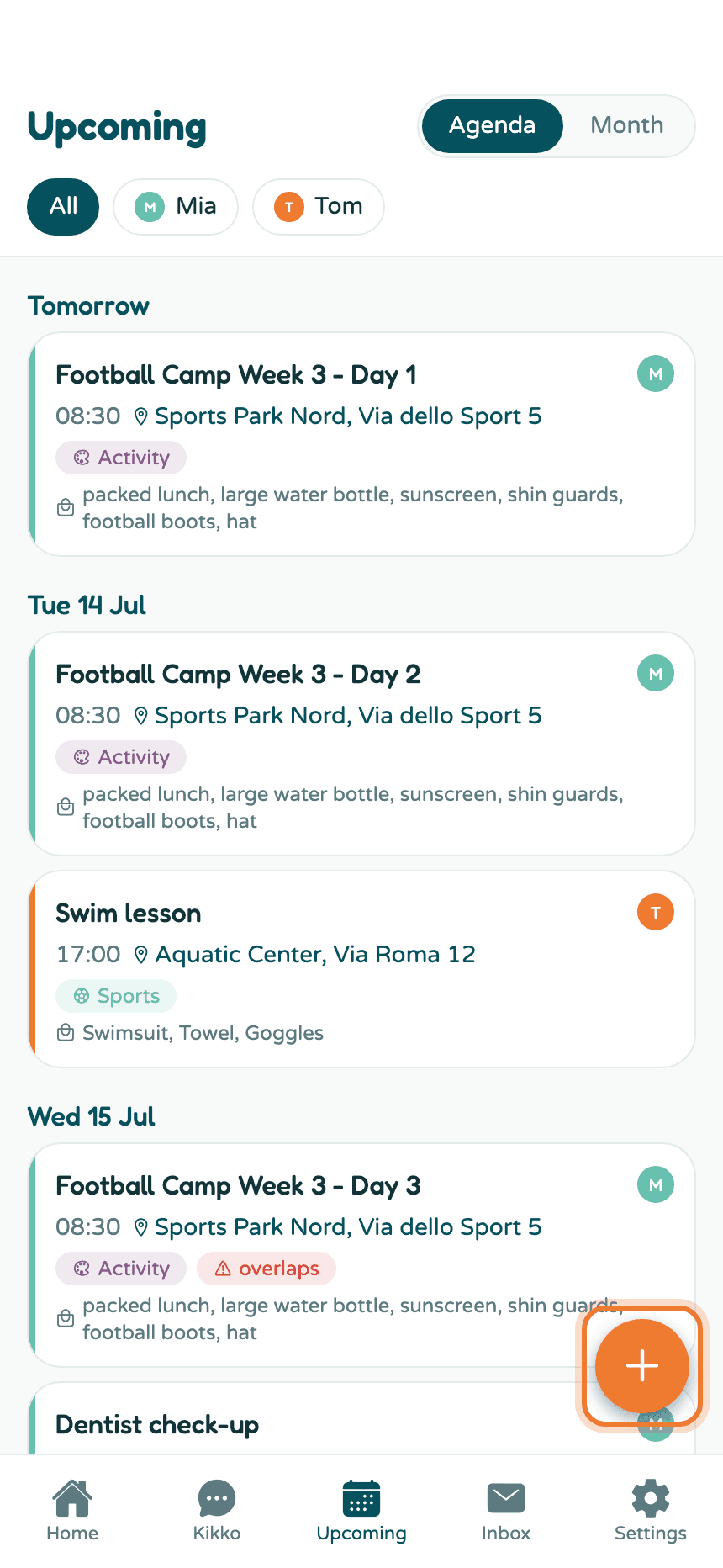
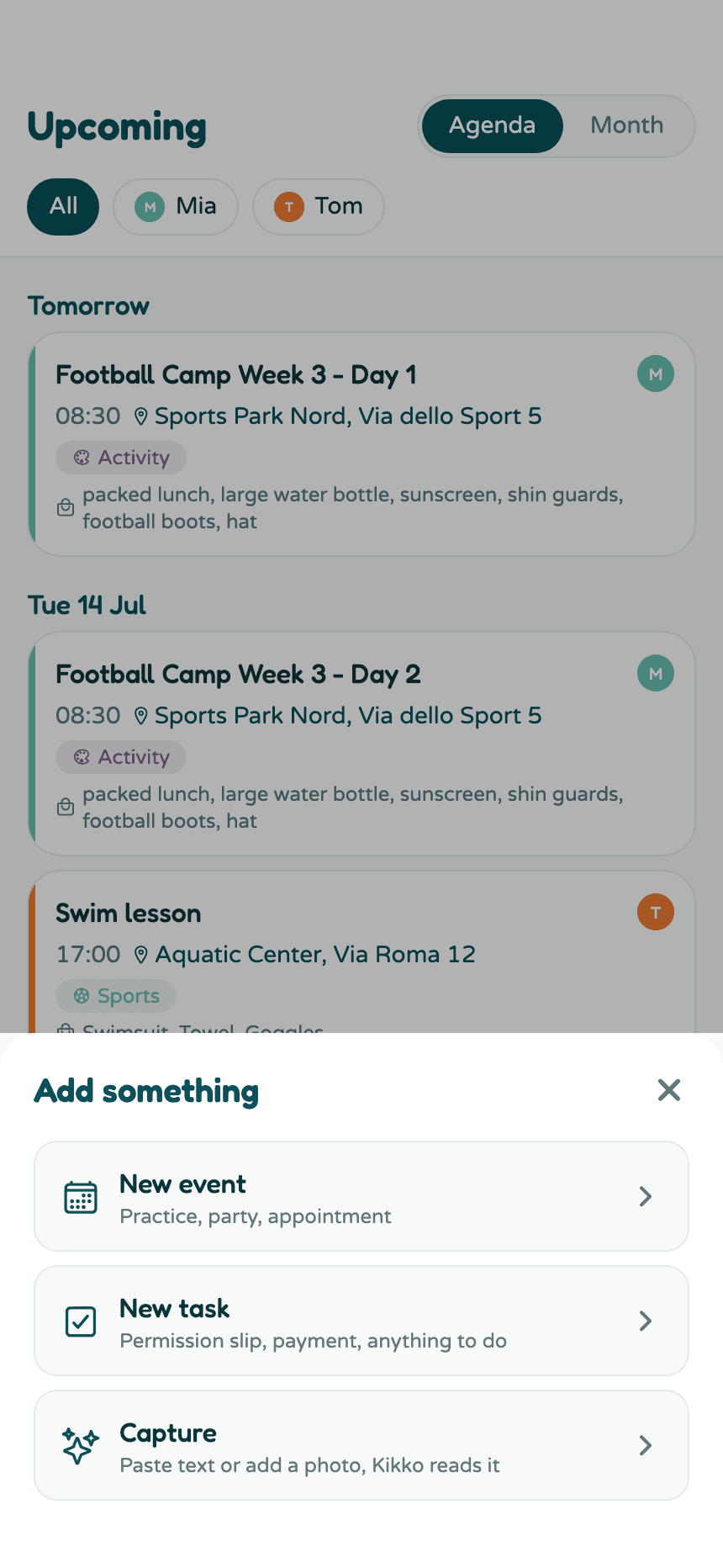
Then pick New event or New task.
The event form
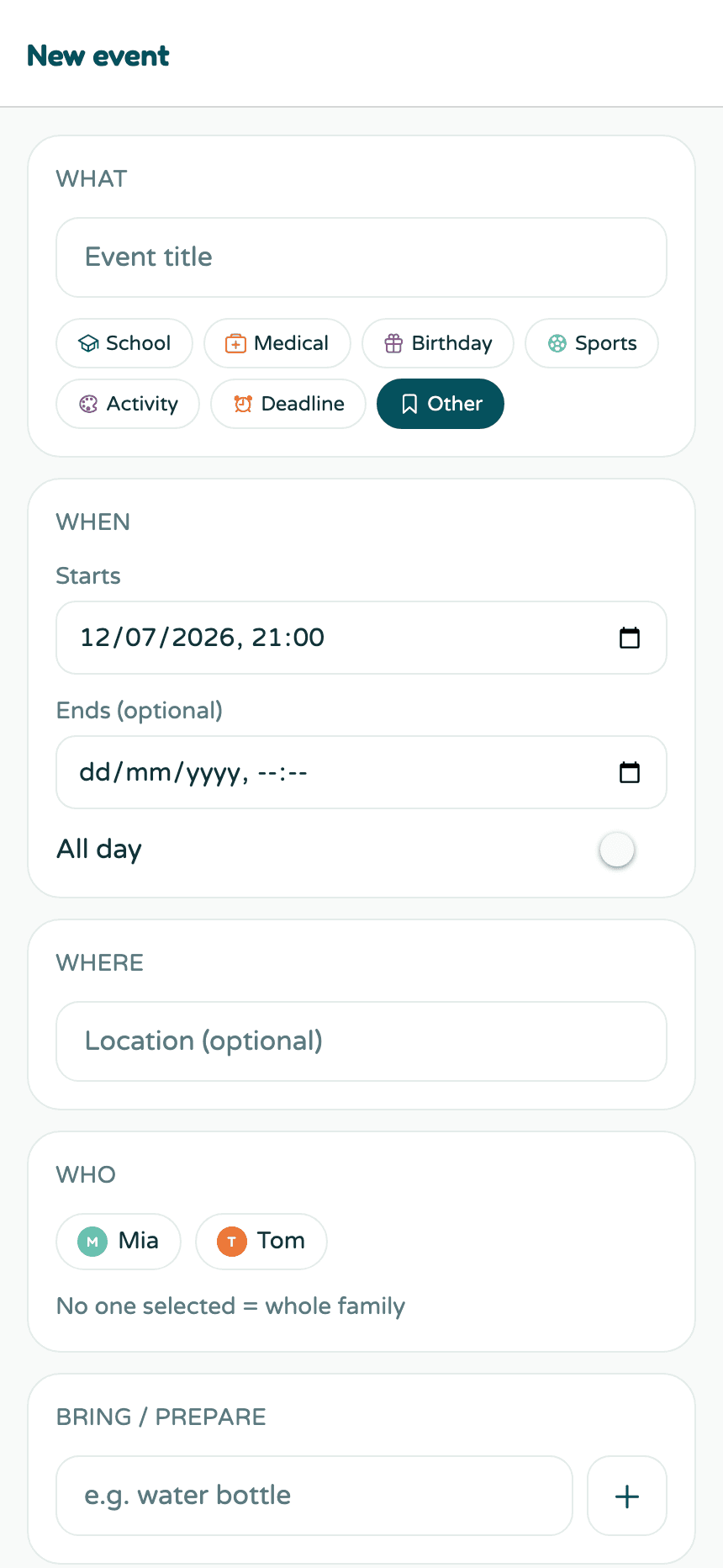
- What - the title, plus a category chip (School, Medical, Birthday, Sports, Activity, Deadline, Other). Categories color the event's tag.
- When - start time, optional end time, or flip on All day for things like holidays and spirit weeks.
- Where - optional location. Once saved, the address becomes a tappable pin that opens your maps app.
- Who - tap a kid to assign the event. No one selected means it's for the whole family.
- Bring / prepare - list items like "water bottle" or "signed form". They show up on the event card and in reminders, so nothing gets forgotten at the door.
- Notes - anything else worth remembering.
Tap Add event to save.
The task form
Tasks are for things you do, not places you go: sign the permission slip, pay for the trip, buy new gym shoes.
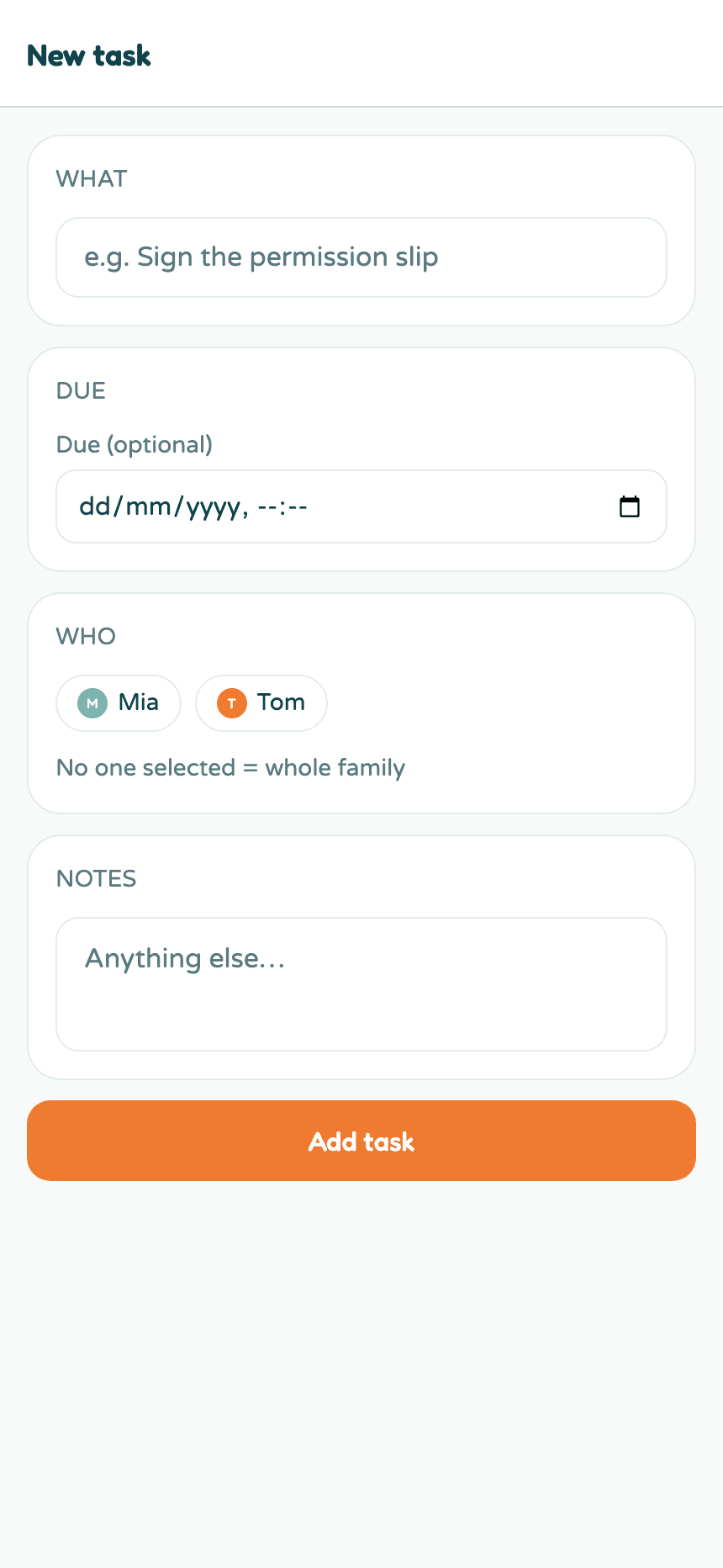
- Title - what needs doing.
- Due (optional) - when it needs doing by. Tasks with a due date show up in your agenda and briefings.
- Kid - optionally connect the task to one kid.
- Notes - details, links, amounts.
Tap Add task to save. Tasks live on the Upcoming tab alongside events, where you tick them off - done ones move to a collapsible Completed section. More in Manage tasks.
Good to know
- Everything you add manually is visible to the whole family, like everything else in Kikko.
- Events get reminders automatically based on your lead-time settings; you can add extra reminders from the event's detail screen.
- If two events overlap, Kikko flags the conflict on the event and on Home.
Related
Did this answer your question? If not, email us and we'll help.